
Key takeaway
Offer contact channels appropriate to each audience and locale, and test mobile handoff, desktop access, and fallbacks separately. A normal WeCom or WhatsApp link does not prove a contact was added or a message sent. Callbacks and messaging require separate capability and permission checks.
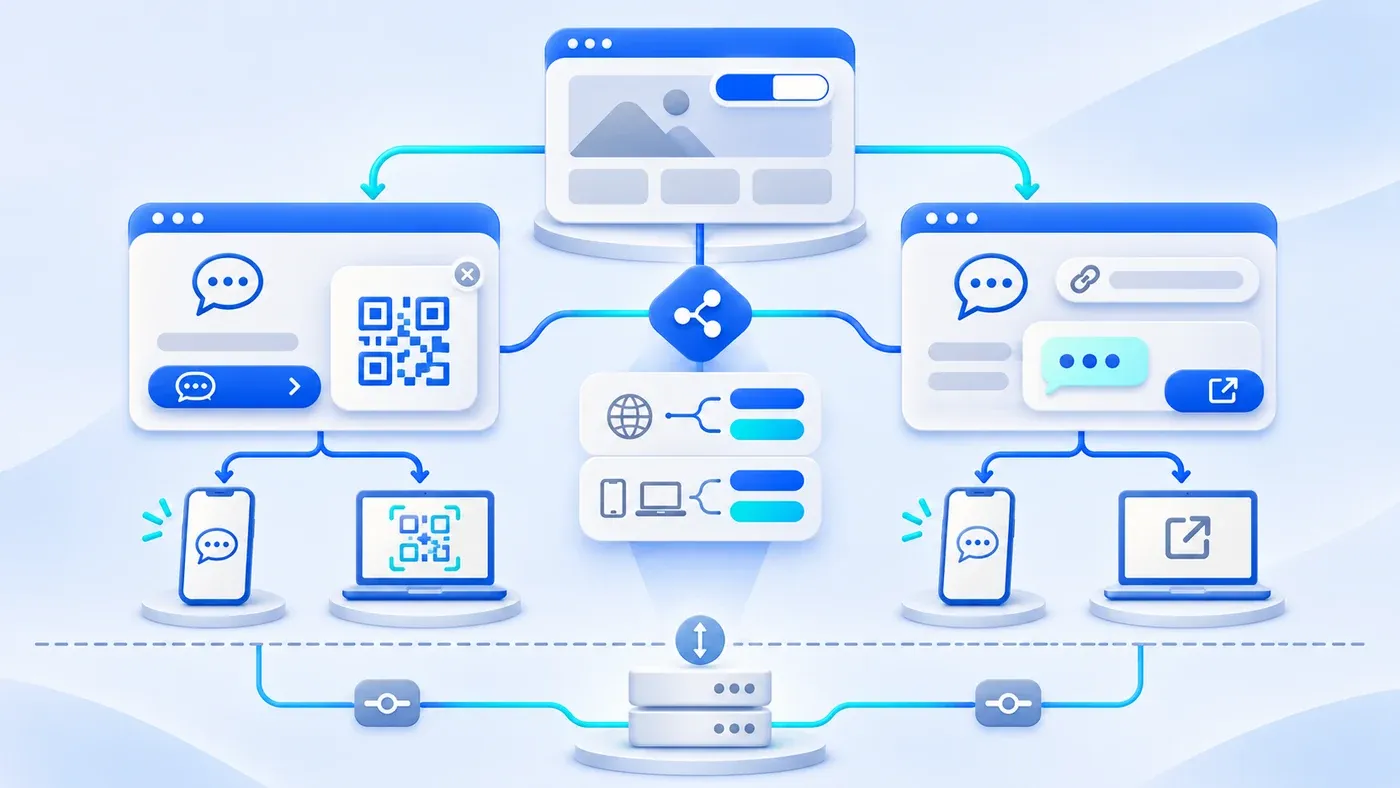
Many companies building a bilingual corporate website treat instant messaging as an afterthought. On paper, "add WeChat and WhatsApp buttons" sounds like a five-minute task. In practice, three breakdowns happen repeatedly: an overseas buyer on the English site clicks "Chat Now" and gets a Chinese WeChat QR code they cannot use; a mobile visitor taps a contact button only to have a QR code pop up on their own phone screen with no easy way to scan it; or the marketing team assumes that pasting a chat link into the footer automatically syncs conversation logs and lead tags into their backend database.
Connecting WeCom (Enterprise WeChat) and WhatsApp to a corporate website requires more than dropping a floating icon into a template. To make instant inquiries reliable without overcomplicating your initial build, you need four deliberate decisions: strict locale isolation between Chinese and English channels with same-language fallbacks, device-aware invocation paths for mobile versus desktop, a clear engineering boundary between front-end chat launching and backend API callbacks, and real-device acceptance testing before launch.
Isolate Instant Channels by Locale and Market Without Cross-Language Fallbacks
Choose channels from the intended customers' actual habits. A Chinese-language site can offer WeCom, while markets using WhatsApp can use WhatsApp and business email. Language alone does not tell you which apps a visitor has installed, so retain appropriate alternatives.
A bilingual corporate website should manage instant messaging settings per locale inside its global configuration:
- Chinese Pages (
/zh/...): WeCom Customer Acquisition Links + Verified QR Codes Displaying only a static WeChat QR image makes mobile outreach clumsy. Use an official acquisition entry generated in the WeCom console. Verify device handoff, available member assignment, welcome messages, tags, and fallback behavior against the account's current capabilities; a link alone cannot guarantee one-tap contact addition on every device. - English Pages (
/en/...): Official WhatsApp Click to Chat Links + Pre-Filled English Context For international visitors on English pages, use WhatsApp's official Click to Chat structure. As documented in the WhatsApp Help Center guide on Click to Chat, the standard format ishttps://wa.me/<number>?text=<urlencodedtext>. The phone number must be in full international format using digits only—include the country code, and strip out+signs, leading zeros, brackets, spaces, or dashes (for example,+86 155 7517 7889becomes8615575177889). Meanwhile, thetextparameter should carry a concise, URL-encoded English opening message so the buyer does not face an empty input box when the chat opens. - Strict Same-Language Fallback Rules During staged rollouts, a team might have verified QR graphics ready before a direct link is configured. Your fallback logic must never cross language boundaries: if a locale does not have a direct instant link configured, fall back only to that same locale's verified QR code or native consultation form—never borrow the Chinese WeCom link on an English page. Keeping contact entry points aligned with the active language is a foundational rule in our Multilingual and Global Websites Solution.
Device-Aware Interaction: Direct Launch on Mobile, Dual Path on Desktop
- Phone: open an official link
- Desktop: scan or open directly
- Offer a fallback if handoff fails
- Integrate messaging separately
Even when the right messaging tool matches the active language, using identical click behavior on mobile phones and desktop monitors creates friction. How a visitor starts a chat depends on which device they are holding.
Mobile Viewports: Open the HTTPS Link Directly in One Tap
When a visitor taps "WeCom Consultation" or "Chat on WhatsApp" on a smartphone, they are already holding the device where WeChat or WhatsApp is installed. Popping up a modal with a QR code on a mobile screen forces the user to save an image and switch apps manually—and in many mobile browsers, long-pressing a webpage image will not trigger cross-app QR recognition. On mobile viewports, the primary button should act as a direct HTTPS link that opens the WeCom acquisition URL or https://wa.me/ URL immediately. Only when no direct URL is configured should the mobile view fall back to showing a QR card.
Desktop Viewports: Provide Both a Scannable QR Card and a Direct Launch Link
Desktop visitors split into two habits: many prefer to scan a QR code off their monitor with their phone, while others run WeCom Desktop, WhatsApp Desktop, or WhatsApp Web on their computer and want to launch the chat window on screen.
To support both habits cleanly, desktop contact triggers—across the footer, the Contact Us page, the consultation sidebar, and the floating contact bar—should provide a dual-path popover card:
- Path 1 (Scan with phone): Clicking the trigger opens a popover displaying the verified WeCom QR code (on Chinese pages) or a locally generated WhatsApp session QR code (on English pages).
- Path 2 (Open directly on desktop): Inside the same card, provide a secondary action link (
Chat on WhatsApp ↗) that opens thehttps://wa.me/or WeCom link directly for desktop app users.
Because QR cards are non-modal popups layered over page content, keyboard and pointer behavior must remain predictable. Under W3C WAI's Understanding Success Criterion 1.4.13 (Content on Hover or Focus), non-modal popup content should be dismissible, hoverable, and persistent until dismissed. Enforce four front-end details:
Esckey dismissal with focus return: PressingEsccloses the open popover and returns focus to the trigger button.- Outside click and focus-out dismissal: Clicking outside the popover or tabbing focus past it closes the card cleanly.
- Mutual exclusion across triggers: Opening the footer contact card automatically closes the side floating contact card (and vice versa) so two QR popovers never overlap.
- Single source of truth: Every contact trigger across the site reads from the same CMS global settings record.
Engineering Boundaries: Front-End Chat Invocation Does Not Equal Automatic CRM Sync
When scoping a website project, "integrate WeCom and WhatsApp with our website" can refer to three distinct engineering tiers. Separating front-end web work from backend API integration prevents costly misunderstandings:
- Tier 1: Front-End Session Invocation & Global Contact Settings (Standard Website Scope) The CMS stores locale-specific URLs, phone numbers, pre-filled message templates, and QR assets; front-end templates handle responsive rendering, QR generation, fallback logic, and accessible popovers. What Tier 1 does not do: A standard front-end link (
https://wa.me/...or a basic WeCom link) is a one-way handoff from the browser to the messaging app. Once the visitor opens WeChat or WhatsApp, the website database does not automatically receive a callback confirming whether they pressed "Add Contact" or "Send," nor does it pull chat transcripts into the website admin panel. - Tier 2: Channel Parameter Attribution & Server Callbacks (Custom API Integration Scope) For source identification, contact-added callbacks, or message ingestion, confirm each platform capability, account permission, notice, event, and retention scope separately. A contact-added event is not proof that a first message was sent. Check WeCom parameters against the specific official API documentation, and use Meta's WhatsApp Business Platform documentation for message integration rather than treating a normal
wa.melink as a messaging API. For most B2B teams, starting at Tier 1—using official links with preset welcome messages and static channel tags inside WeCom, paired with an on-site consultation form—is far more practical for Phase 1. - Tier 3: Internal Inquiry Triage & Follow-Up Ownership (Internal Workflow Scope) Once a prospect reaches out via WhatsApp, WeCom, or an on-site form, someone on your team must qualify the request and respond on time. Defining who answers which channel and how complex inquiries escalate is an internal workflow task—see How to Automatically Route Inbound Inquiries to the Right Person for how classification fields, routing tables, and fallback escalation work together.
Cross-Device Integration, Fallback, and Real-Device Acceptance Matrix
Because instant messaging links depend on mobile operating systems, in-app webviews, and live account states, code reviews and desktop browser resizing cannot replace real-device testing. Use the matrix below to align configuration and pre-launch checks:
Dimension | Chinese Site (WeCom Setup) | English Site (WhatsApp Setup) | Fallback Rule When Unconfigured | Pre-Launch Real-Device Checks |
|---|---|---|---|---|
Official URL & Parameters | Official HTTPS WeCom Acquisition Link (with assigned members, welcome message, and tag) | | Never use unofficial shorteners; if no direct link is set, render only the verified same-language QR code | Tap the live link on a physical phone to confirm clean resolution without warnings or parameter errors |
Mobile Tap Behavior | Primary button opens the HTTPS link directly, launching the member profile card in WeChat | Primary button launches WhatsApp directly with the pre-filled English message ready | Fall back to displaying the same-language QR card plus written phone/email details | Test on physical iOS and Android phones (native browsers and in-app webviews) to confirm one-tap handoff |
Desktop Click Behavior | Opens a popover showing the WeCom QR code plus a direct "Add on WeCom ↗" link | Opens a popover showing the generated WhatsApp QR code plus a direct "Chat on WhatsApp ↗" link | Popover and floating bar share the same fallback logic; never show a Chinese WeCom link on an English page | Verify click-to-open, phone camera QR scanning, desktop app launch, |
Locale Isolation & Switching | Renders WeCom copy, QR code, and link exclusively on | Renders WhatsApp copy, QR code, and pre-filled English prompt exclusively on | Switching languages updates all triggers to the target locale without cross-language leakage | Switch between |
Account Readiness & Handoff | Assigned WeCom accounts have external contact permissions, active quota, and welcome tags | Phone number is active on WhatsApp and monitored by an English-speaking owner | On-site consultation form, phone, and email remain visible on the page as backups | Use an external test phone to add the WeCom contact and send a test WhatsApp message; confirm alerts arrive |
Before signing off on launch or updating global contact details in the CMS, run through this checklist on physical devices:
[Bilingual Website Instant Messaging Real-Device Checklist]
1. CMS Config: Chinese field has a valid WeCom Acquisition Link and verified QR images; English field has a digits-only wa.me link with URL-encoded English text; unconfigured links fall back only to the same language's QR code.
2. Desktop UX: Footer, Contact Us page, consultation sidebar, and floating bar match; popover stays open on hover, closes on Esc or outside click with focus return, and enforces mutual exclusion between footer and floating triggers.
3. Real-Device QA: Physical iOS/Android tap on Chinese pages opens the WeCom profile card and fires the welcome tag; tap on English pages opens WhatsApp with pre-filled English text; internal owners confirm receipt on their phones.
Getting locale separation, desktop-versus-mobile interaction, and real-device verification right ensures that when a prospective buyer is ready to talk, your website connects them in seconds rather than dropping them at a broken link. If you are planning a bilingual website build or refining how domestic and international inquiries reach your team, explore our Corporate Website & Standalone Site Services or test the flow directly on our Contact Us page.
